Energy Flow Analysis
This module displays the energy usage hierarchy across different dimensions.
The Energy Flow Analysis module provides comprehensive visualization of the complete energy journey from supply sources to end-use consumption across your facility. This powerful feature enables you to track energy distribution patterns, identify inefficiencies, and make data-driven decisions to optimize resource allocation and improve overall energy performance.
You can use it to:
- Track energy flow across electricity, water, gas, and heat.
- Quickly identify energy losses and wasteful consumption patterns.
- Monitor the effectiveness of energy conservation measures over time.
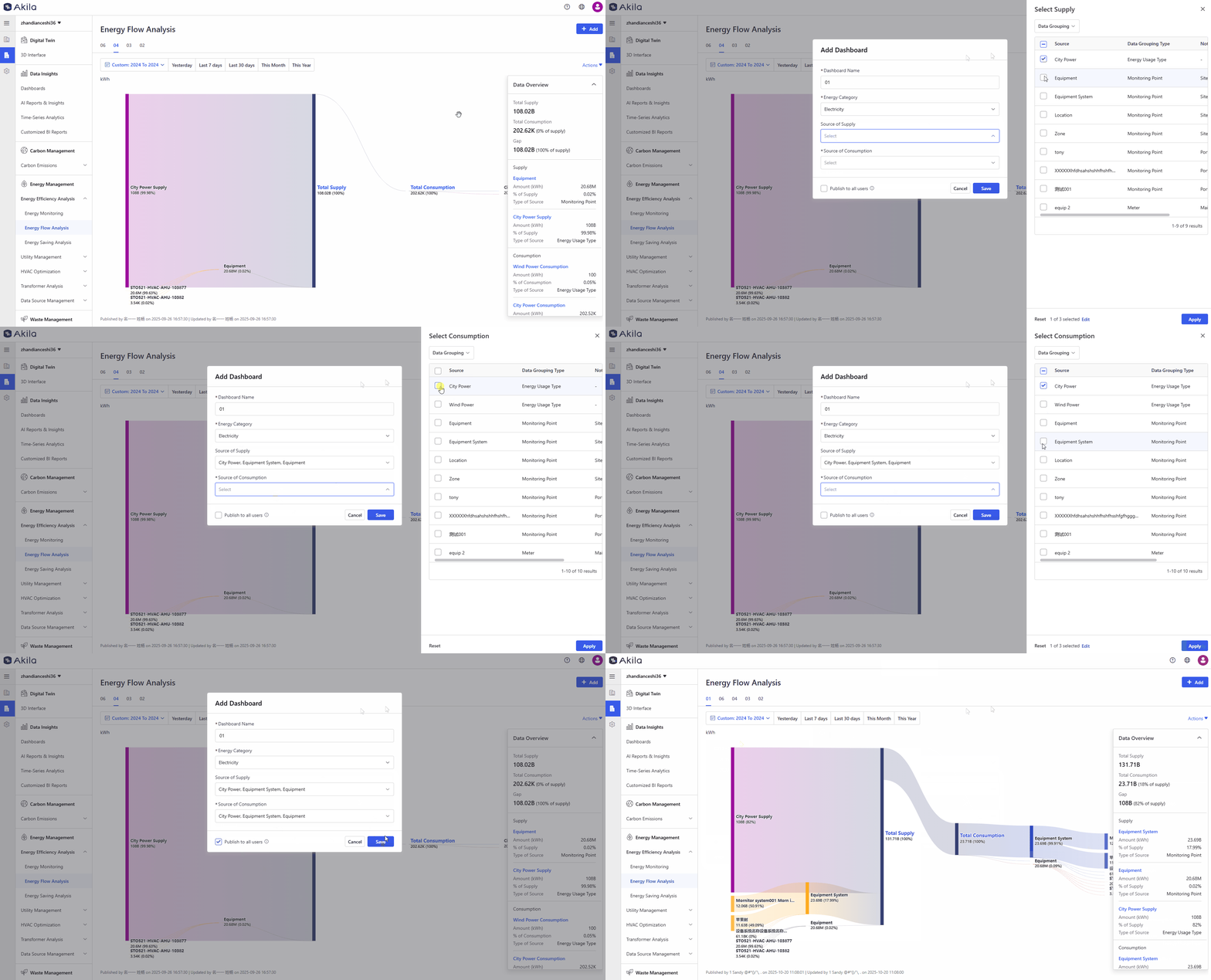
Add Dashboard
- Click "+Add" in the top right corner.
- Enter a dashboard name.
- Select the energy category.
- Select the supply source or consumption source.
Note: The consumption source is a required field since every company consumes energy. If your company also has supply sources, you can add a new dashboard and include them. - Select "Publish to all users".Note: If selected, this dashboard will be visible to all users under the client. You can only publish dashboards when the total number is 10 or fewer.
View Dashboard
- Click the dashboard name.
- Use a vertical bar "|" to distinguish between published and unpublished dashboard names. Published dashboards appear before regular dashboards. If there are no published dashboards, this line will not appear.
- Drag dashboard names to change their order (published dashboards cannot be reordered).
- Select the time range.
- A pop-up will display details of consumption or supply.Note: Click the blue nodes in the pop-up to navigate to the Energy Monitoring page.
Edit Dashboard
- Click "Actions" and "Edit" in the top right corner.
- Edit any field in the pop-up.
- If the checkbox was previously selected, you cannot edit it. If it was not selected, you can edit it.
- Click "Save".Note: You can also edit a published dashboard, and when you update it, the changes will be visible to all users.
Delete Dashboard
- Click "Actions" and "Delete" in the top right corner.
- Click "Delete" to confirm.