Meter Configuration
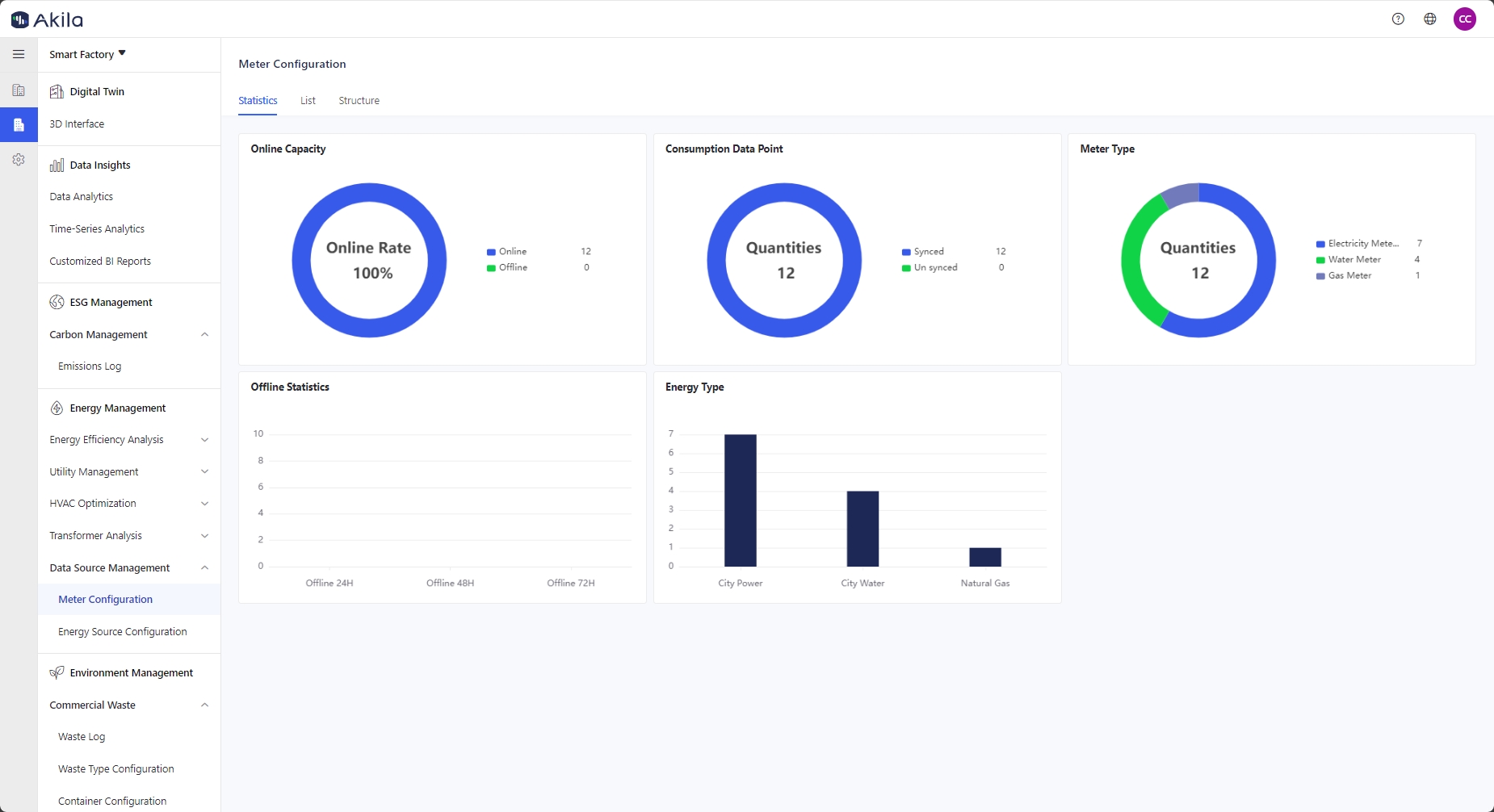
This feature is divided into three sections: Statistics, List, and Structure. This allows you to manage all meters and track their status effectively.
You can use it to:
- Serve as the data source for usage tracking
- View comprehensive information about all meters
| Tab | Description |
|---|---|
| List | Displays all meters added in the Equipment Ledger page, classified by equipment type as smart meters or traditional meters. |
| Statistics | Provides a clear overview of meter status, type, data points, and energy type. |
| Structure | Organizes all meters into a hierarchical structure. |
| Coefficient | The coefficient is the variable ratio factor of the meter, and the usage calculation will multiply the coefficient by the meter reading data. |
List Tab
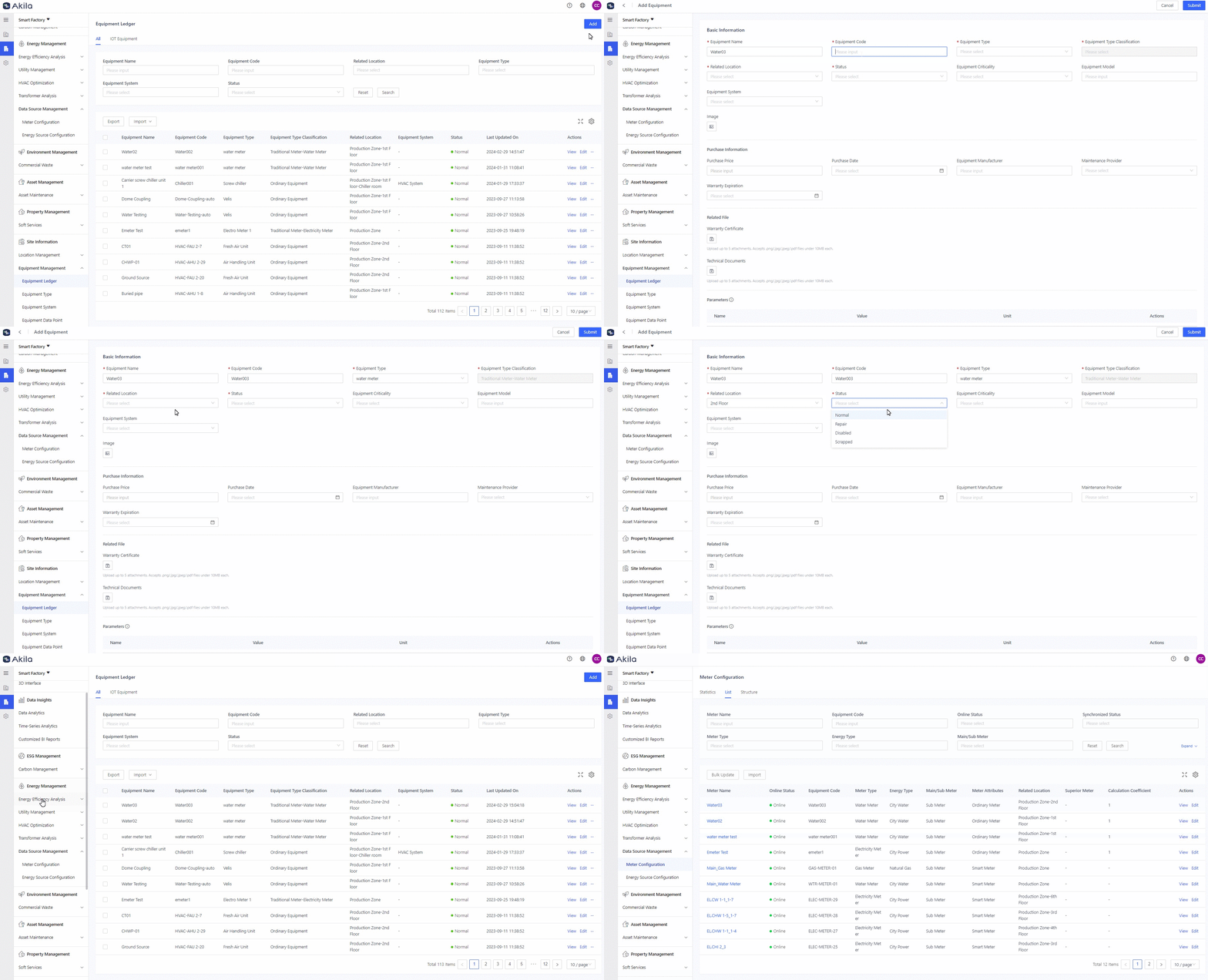
Add Meter
- Add a meter with its equipment type classification as "Smart Meter" or "Traditional Meter" on the Equipment Ledger page.
- It will sync to this page once the equipment is added.
Edit Meter
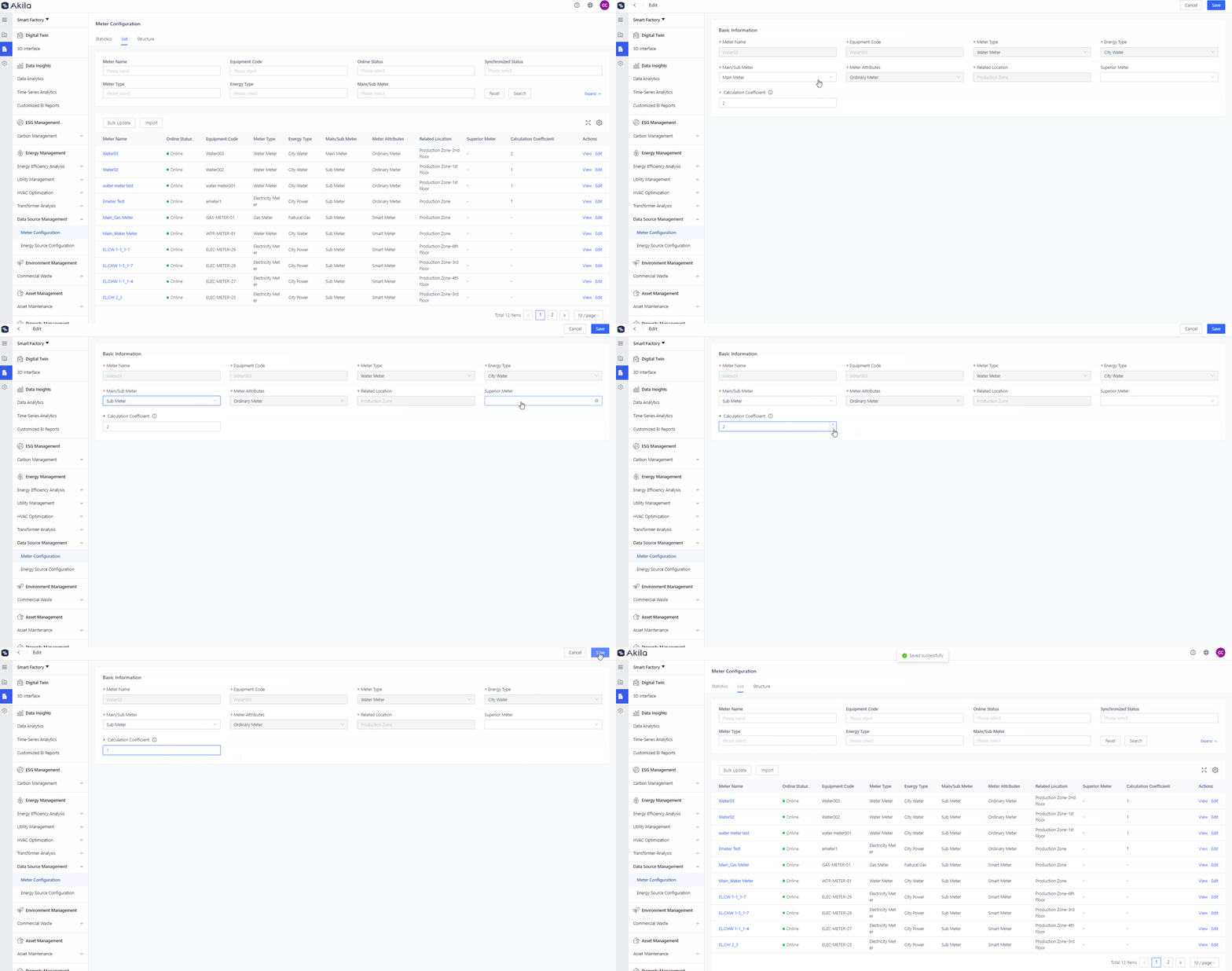
- Click "Edit" (for a single meter)
- Select "Main Meter" or "Sub Meter" according to its business attributes.
Note: Main meters are not combinations of sub-meters. They have no direct association. - Select its superior meter if necessary.
- Edit the "Calculation Coefficient".Note:This will be applied to meter readings. The value generally needs to be greater than 0. You can only edit the "Calculation Coefficient" field for equipment with its type classification set as "Traditional Meter".
Import
- Click "Import"
- Click "Download Template"
- Open the file and fill in the historical data.Note:Smart meters will have historical data, which is helpful for data analytics.
- Click "Please select".
- Select the template and upload it.
Bulk Update
- Click "Bulk Update".
- Click "Download Template".
- Open the file and make your edits.
- Click "Please select".
- Select the template and upload it.
Structure Tab
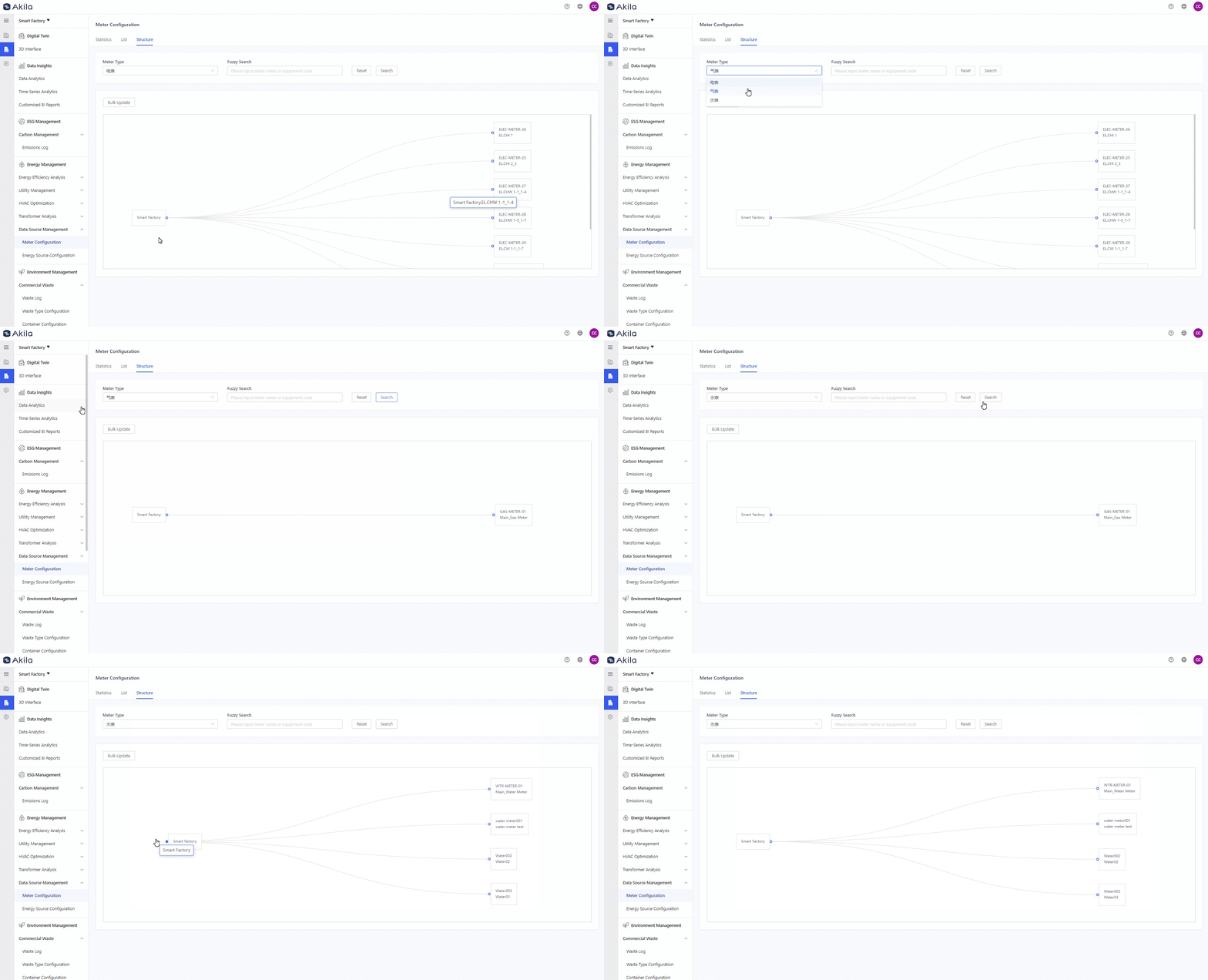
View Structure
- Select a meter type.
- Click "Search".Note:The "Bulk Update" button functions the same as in the "List" tab.
Statistics Tab
| Chart Name | Description |
|---|---|
| Online Capacity | Statistics showing the online quantity, offline quantity, and online rate of all meters at the current site. Traditional meters are considered online by default; smart meters that do not receive real-time data within 24 hours are considered offline, and vice versa. |
| Usage Data Point | Statistics showing data point synchronization for all meters at the current site. |
| Meter Type | Shows the count of each meter type at the current site. |
| Energy Type | Shows the count of meters for each energy type. |
| Offline Statistics | Shows the count of meters that are offline for 24h, 48h, and 72h, with meter type breakdown. |