Equipment Type
Categorize your equipment to make it easier to manage.
You can customize equipment type names. Equipment types are always associated with equipment type classifications, which quickly match the manufacturer and data points between our platform and on-site equipment.
Equipment Type Classification
When adding an equipment type, you must select its equipment type classification.
| Classification | Description |
|---|---|
| IOT Equipment | Includes Smart Meters and Sensors, which require the data point mapping process. |
| Traditional Meter | Meter types that do not require the data point mapping process. If you add equipment belonging to this type, the data points will also be added automatically. |
| Ordinary Equipment | Physical equipment without IoT data. If you fill in a sub-type, it can be applied to the Load Analytics page when uploading manual meter reading. |
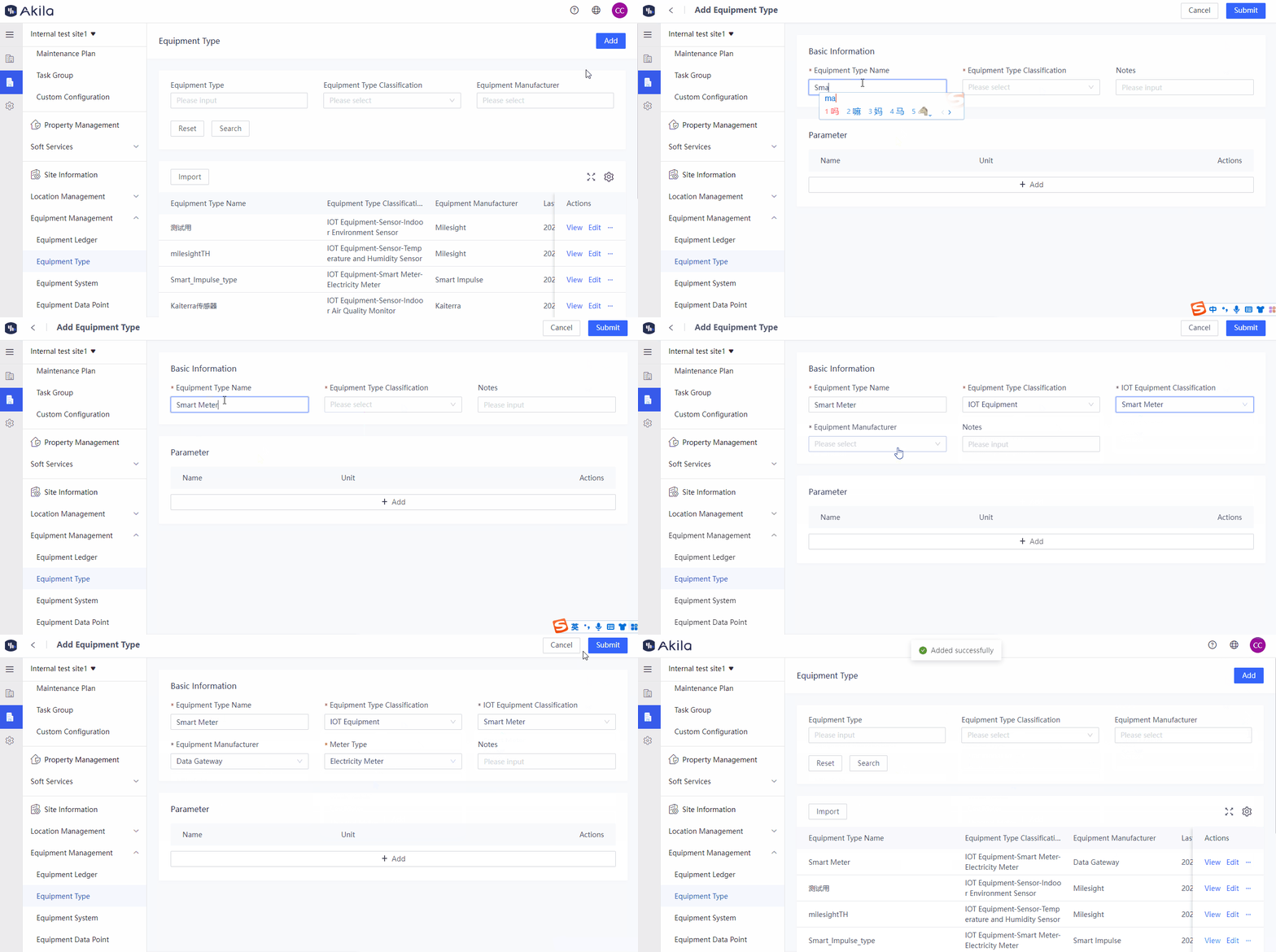
Add IOT Equipment
- Click "Add".
- Input "Equipment Type Name".
- Select "IOT Equipment" as its equipment type classification.
- Select "Sensor/Smart meter" as its classification.
- Select the equipment manufacturer.Note: We currently support Milesight, Smart Impulse, Acrel, Kaitera, Eastron, Link The All, Advantech, and Data Gateway. These are all hardware devices that need to integrate with Akila to collect data points.
- Select a sensor/smart meter type if needed.
- Input some notes (optional).
- Add parameters (optional).
- Click "Submit".Note: If you add equipment belonging to an equipment type, you can view the IoT equipment data points on the Equipment Data Point page and Time-series Analytics page.
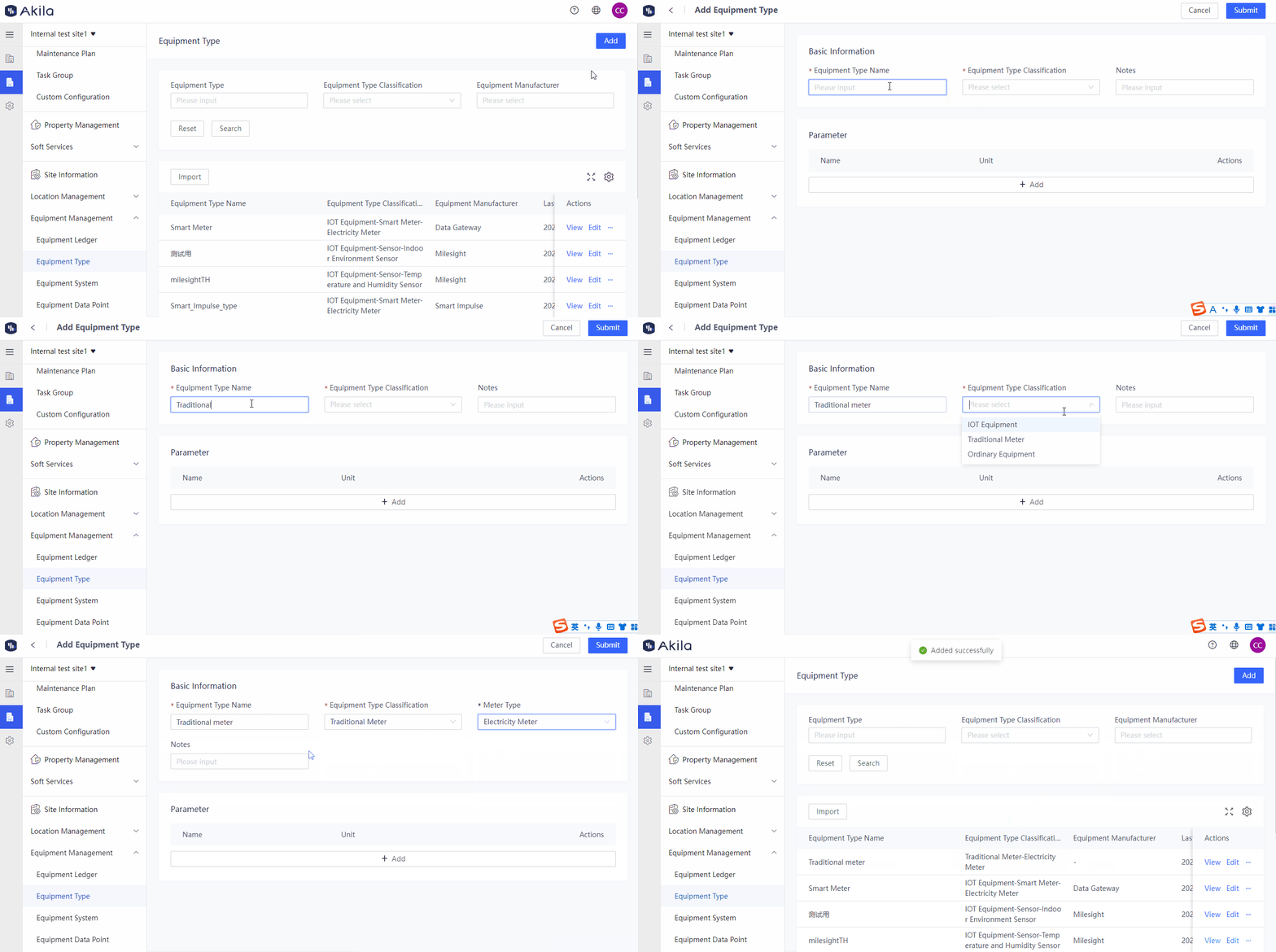
Add Traditional Meter
- Click "Add".
- Select "Traditional Meter".
- Select a meter type.
- Select an energy type.
- Input some notes (optional).
- Add parameters (optional).
- Click "Submit".Note: If you add equipment belonging to a traditional meter and select it when adding an inspection plan, operators can carry out the meter reading task.
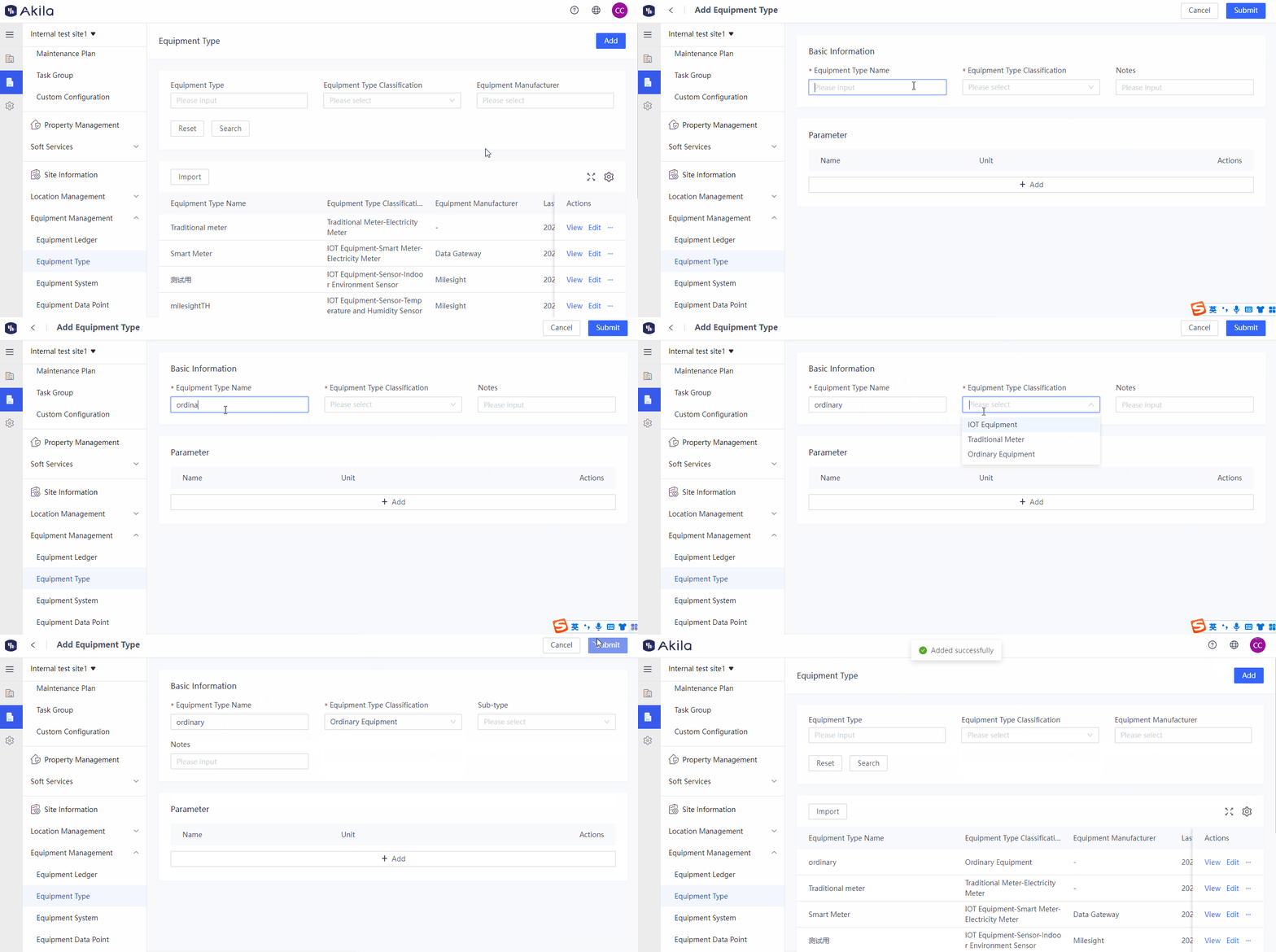
Add Ordinary Equipment
- Click "Add".
- Select "Ordinary Equipment".
- Select a sub-type (only transformer) if needed, which can only be applied to the Load Analytics page of Energy Suite.
- Input some notes (optional).
- Add parameters (optional).
- Click "Submit".