Site Settings
You can manage holidays, working days, working hours, and time zones here.
| Feature | Applications |
|---|---|
| Holiday | Maintenance/Workspace Management-Inspection |
| Time Zone | All business data related to time will follow the configured time zone. Displays the time zone of the current site. |
| Site Area | The actual operational area may differ from the total site area. The operation area is used to calculate carbon emissions and energy intensity. |
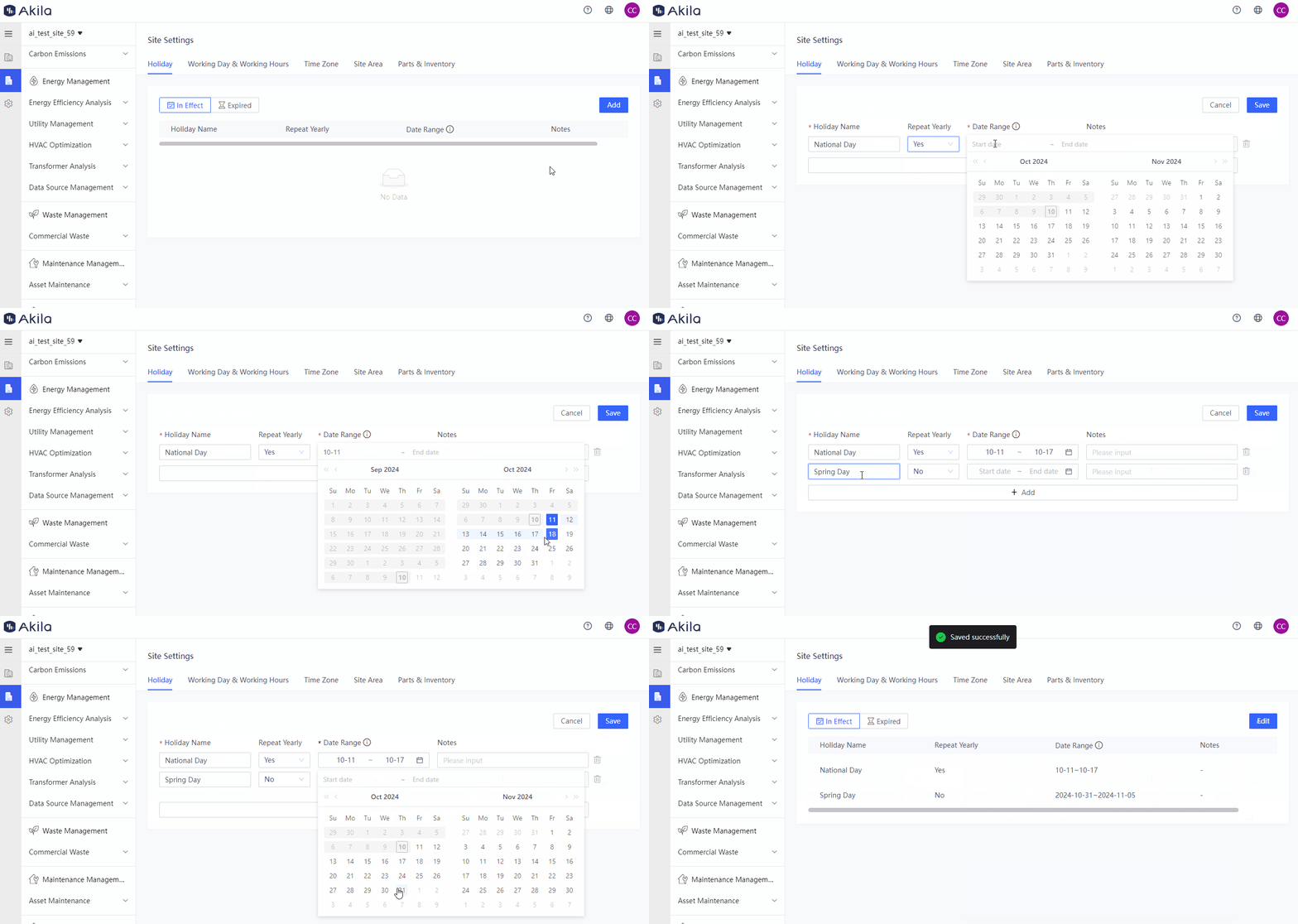
Add Holiday
- Click "Edit".
- Input "Holiday Name".
- Select "Yes" or "No" under "Repeat Yearly".Note: If you select "Yes", the chosen date range will recur every year, which means you don't have to repeat the holiday setup each year after this holiday is selected when adding an inspection plan. If you select "No", it will only apply to your chosen date once in the selected year.
- Select "Data Range".
- Input "Note" (optional).
- Click "Save".
| State | Description |
|---|---|
| In Effect | End date is today or later. |
| Expired | End date is earlier than today. |
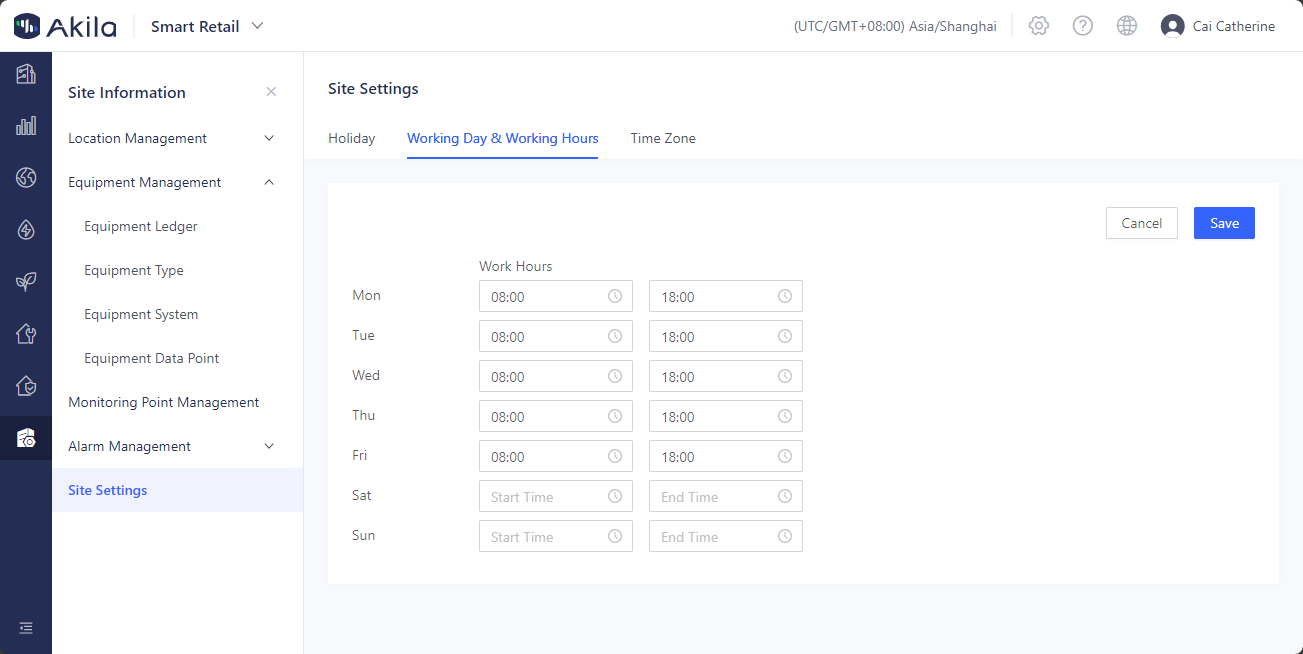
Edit Working Day&Working Hours
- Click "Edit".
- Set the start and end times for working days.
- Click "Save".
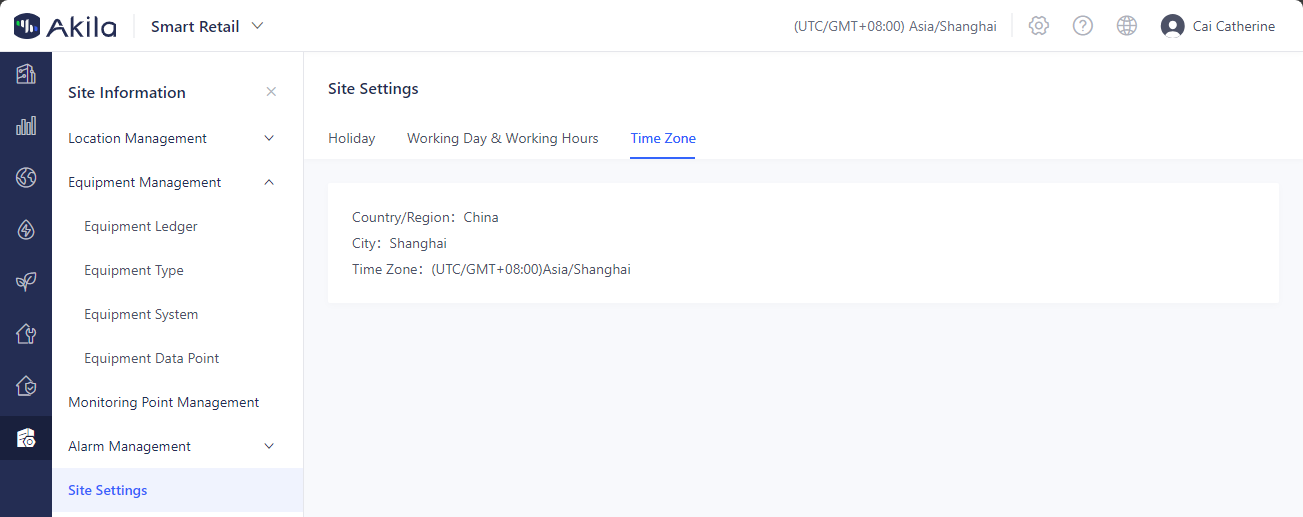
Time Zone
You can view the time zone based on the site address.
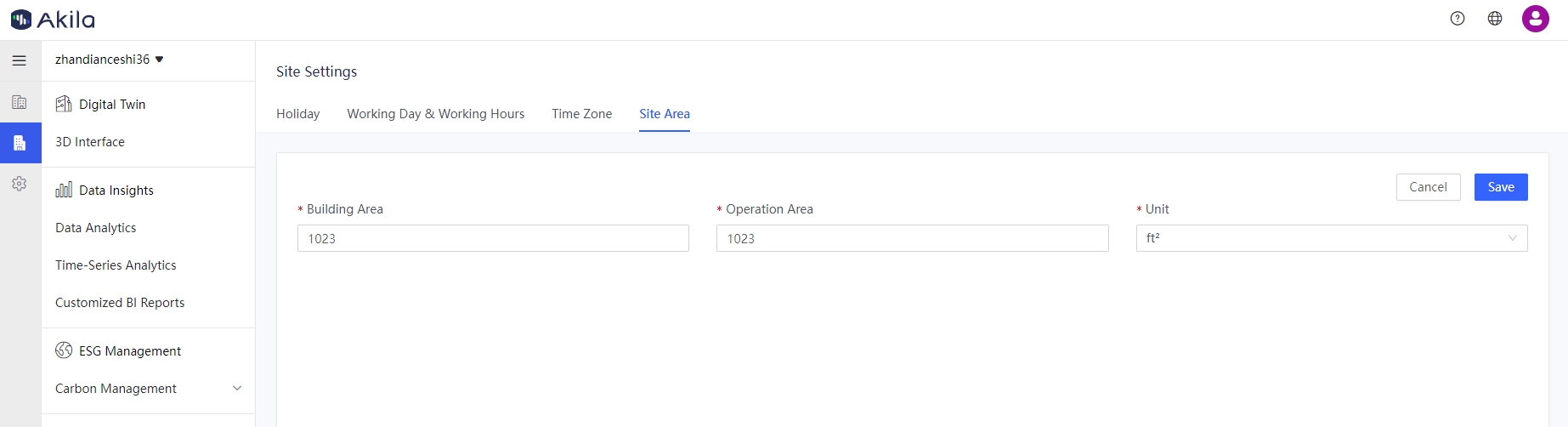
Site Area
- Click "Add".
- Enter the "Building Area" and "Operation Area".
- Select a unit.
- Click "Save".
| Area | Description |
|---|---|
| Building Area | The floor space of the building where the current site is located. |
| Operation Area | The actual operational area. This will be used to calculate carbon intensity and energy intensity after modification. |
Parts & Inventory
- Click "Edit"
Note: The default option will be "Standard" - Select "Standard" or "Average" under the Unit Price Rule.Note: If you select "Standard", all outbound orders will use the unit price configured in the part information. If you select "Average", all outbound orders will use the average price of parts, which is calculated for each part using this formula: "(total value of the part before the inbound order + total value of the part in new inbound order) / total quantity of the part after the inbound order." This rule only applies to stock parts; non-stock parts still use the standard price.
- Click "Save"