Map Overview
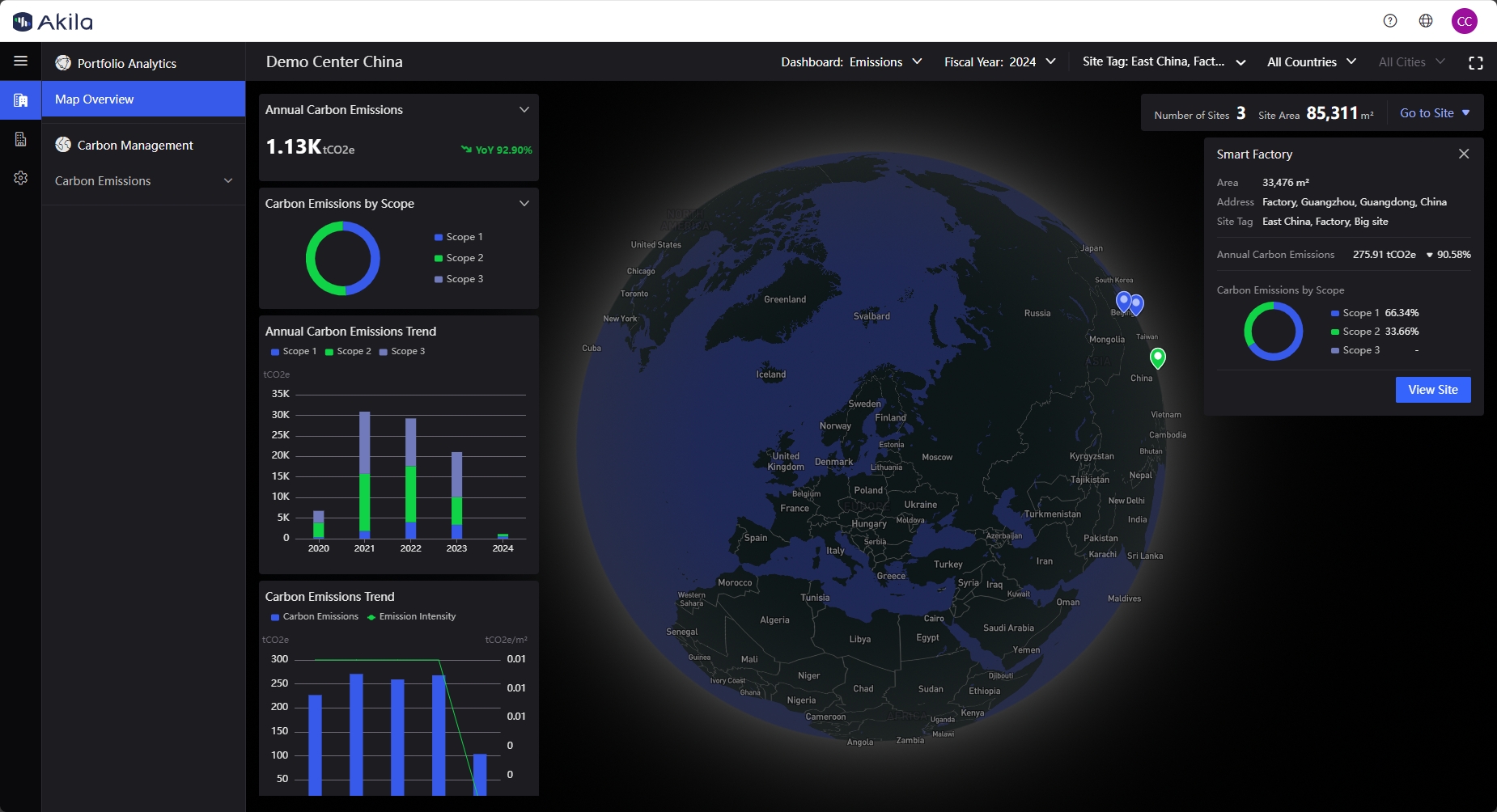
Since a company may have subsidiaries and branches across different locations, there may be numerous sites under one organization. This page displays a comprehensive collection of all site information. We link all sites on an interactive 3D map to create an integrated information hub that helps you quickly view reliable data, access sites, and locate issues.
You can use it to:
- Collect and view comprehensive data for each site.
- Display the geographic distribution of all sites.
- View basic site information.
- Access a dashboard with site statistics rankings.
- Cross-analyze data from sites sharing the same tags.
Map Overview
| Term | Description |
|---|---|
| Map | Distribution of sites |
| Dashboard | Located in the top right corner of the page. Displays statistics for key indicators across Carbon, Energy, Maintenance, Workspace, and Waste suites. You can click the icon in the top right corner of some dashboards to view site statistics rankings. Clicking on a site will also locate its geographic position on the map. |
| Country and City | Located in the top right corner of the page. Filter to display data indicators from different regions. |
| Site Tags | On the top right of the page, showing all the tags. Slide to enable the “Cross Analysis”, will be in line with all the selected tags for comparative analysis of site data, for example, when you select the label A and label B, only the site meets the two tags will be displayed. Slide to disable the “Cross Analysis”, the data of any site that matches the selected tags will be compared and analyzed, for example, when you select tag A and tag B, the sites that match any of the tags will be shown. |
| Go to Site | Located in the top right corner of the page. Provides access to individual sites. Clicking "Go to Site" displays a list where you can search for and navigate to a specific site. |
| Mouse | Operation | Effects |
|---|---|---|
| Wheel | Scroll | Scroll the mouse wheel in the map area to zoom in or out. |
| Left Button | Long Press | Press and hold the left mouse button in the map area to rotate the map around the cursor position. |
| Left Button | Click | Click a site icon on the map to display an information panel in the upper right corner. You can also click "View Site" to navigate to that site. |
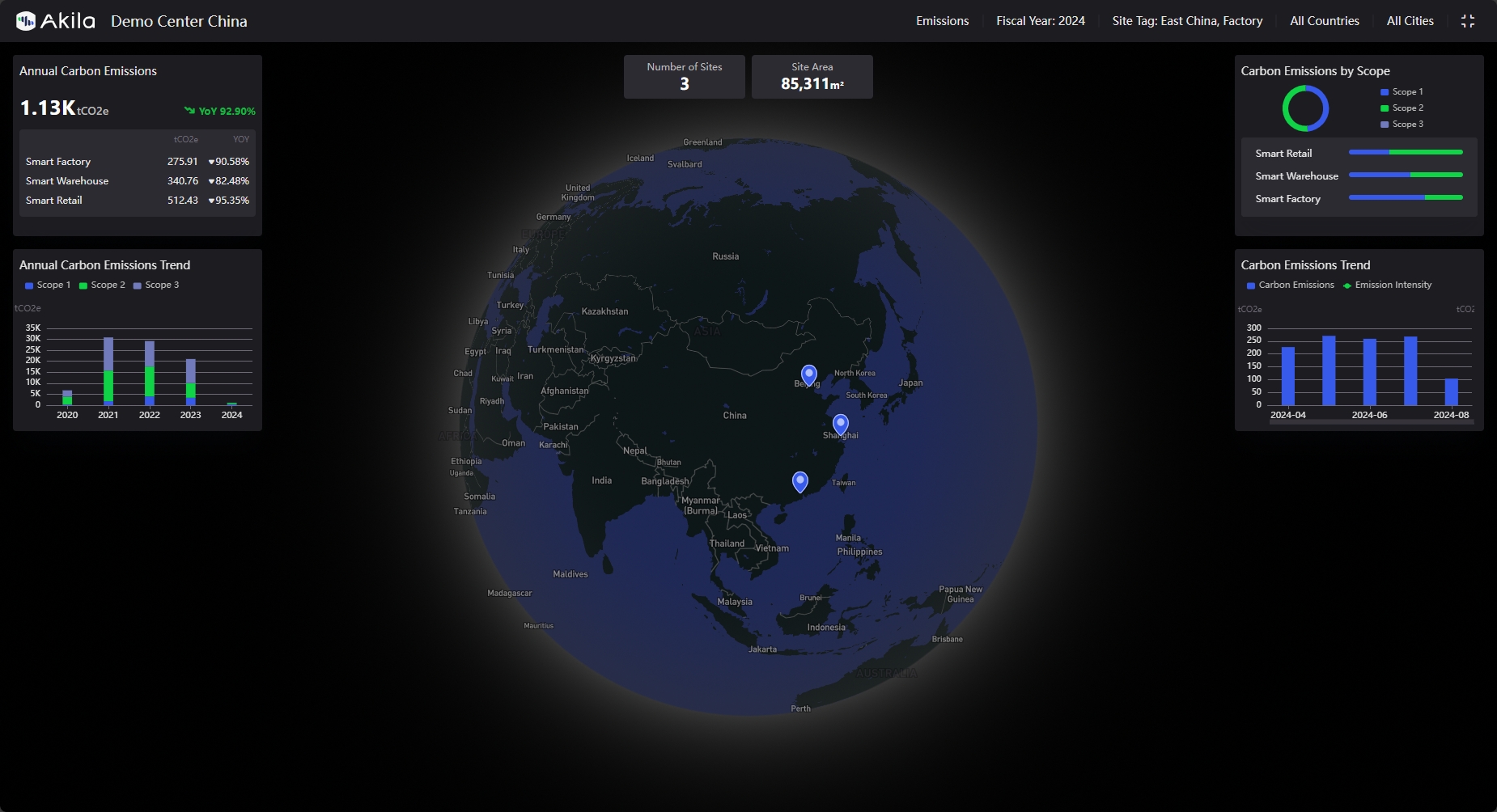
Big Screen Mode
You can toggle between two visualization modes on the Map Overview page. "Big Screen" mode provides enhanced UI responsiveness on larger displays, auto-refreshes data daily, and disables the automatic logout feature present in the rest of the platform.
You can access Big Screen mode by clicking the icon in the upper right corner.