Invoice Log
Public utilities refer to industries and enterprises that provide essential services and facilities necessary for the public's basic living and production needs. These services typically include water supply, electricity, gas supply, public transportation, and telecommunications. Public utilities are generally operated by the government or regulated enterprises to ensure the continuity, quality, and fairness of these critical services. Managing utility bills (invoices) is crucial for businesses. This feature helps you upload and manage public utility bills on the Akila platform.
You can use it to:
- Track and analyze energy bills on a regular basis to better manage energy costs.
- Make energy usage data more comprehensive and detailed.
Add Invoice
1.Invoice Configuration
1.1 Click "Invoice Configuration" in the top right corner.**Note:** You can view all "Energy Types" and their "Usage Types" or "Cost Types". 1.2 Click "Edit" in the corresponding energy type column of the list.**Note:** You cannot edit if any utility bills have been uploaded. You must delete the uploaded invoice logs before editing. 1.3 Select the corresponding "Usage Type" and "Cost Type" for the invoice.**Note:** "Total Usage" and "Total Cost" are selected by default, which represent the sum of usage and cost across all periods. What you configure here will be applied to invoices added later. For example, if you select "Total Usage" and "Total Cost" for the City Power energy type, the invoices you upload will include these fields. 1.4 Click "Save".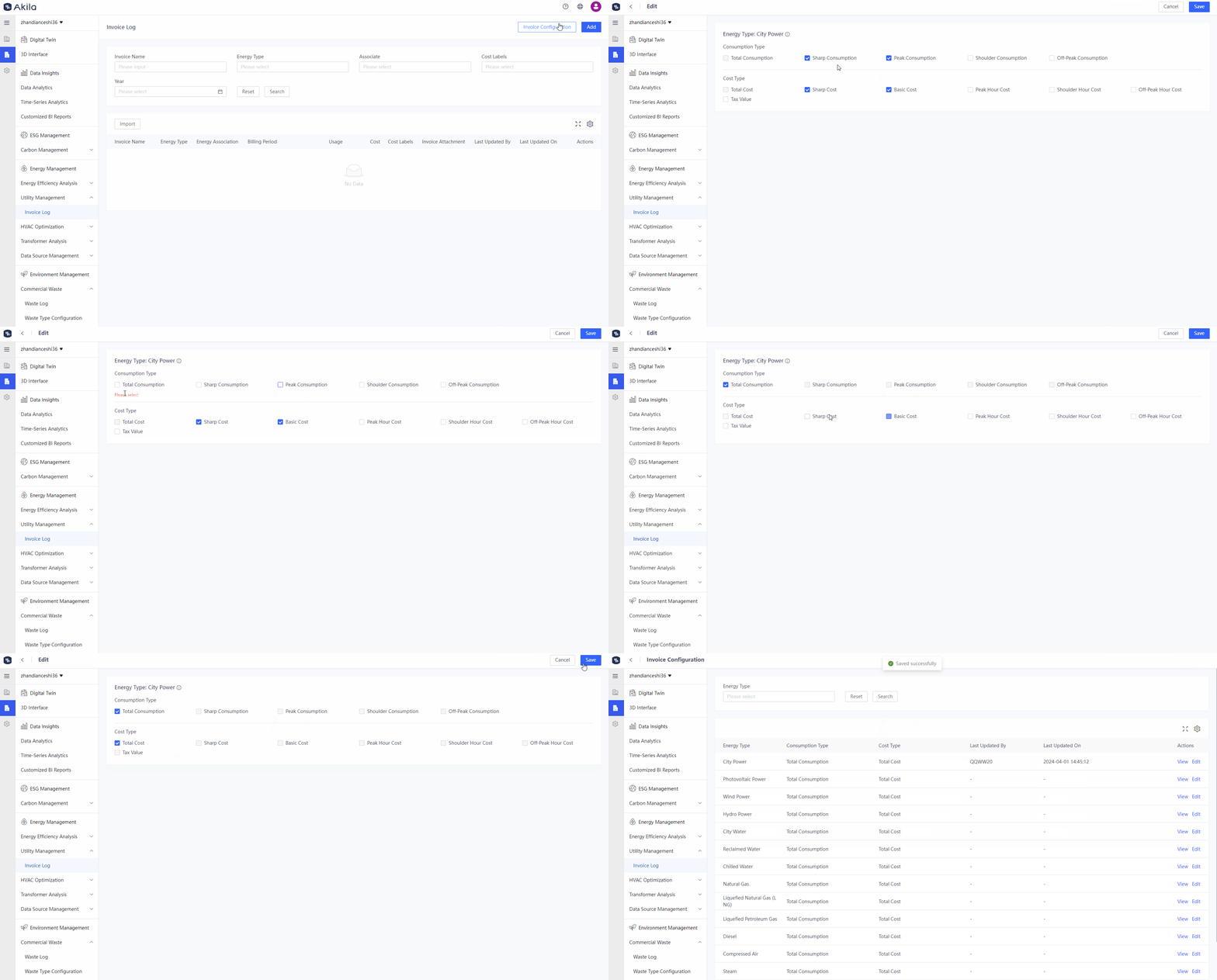
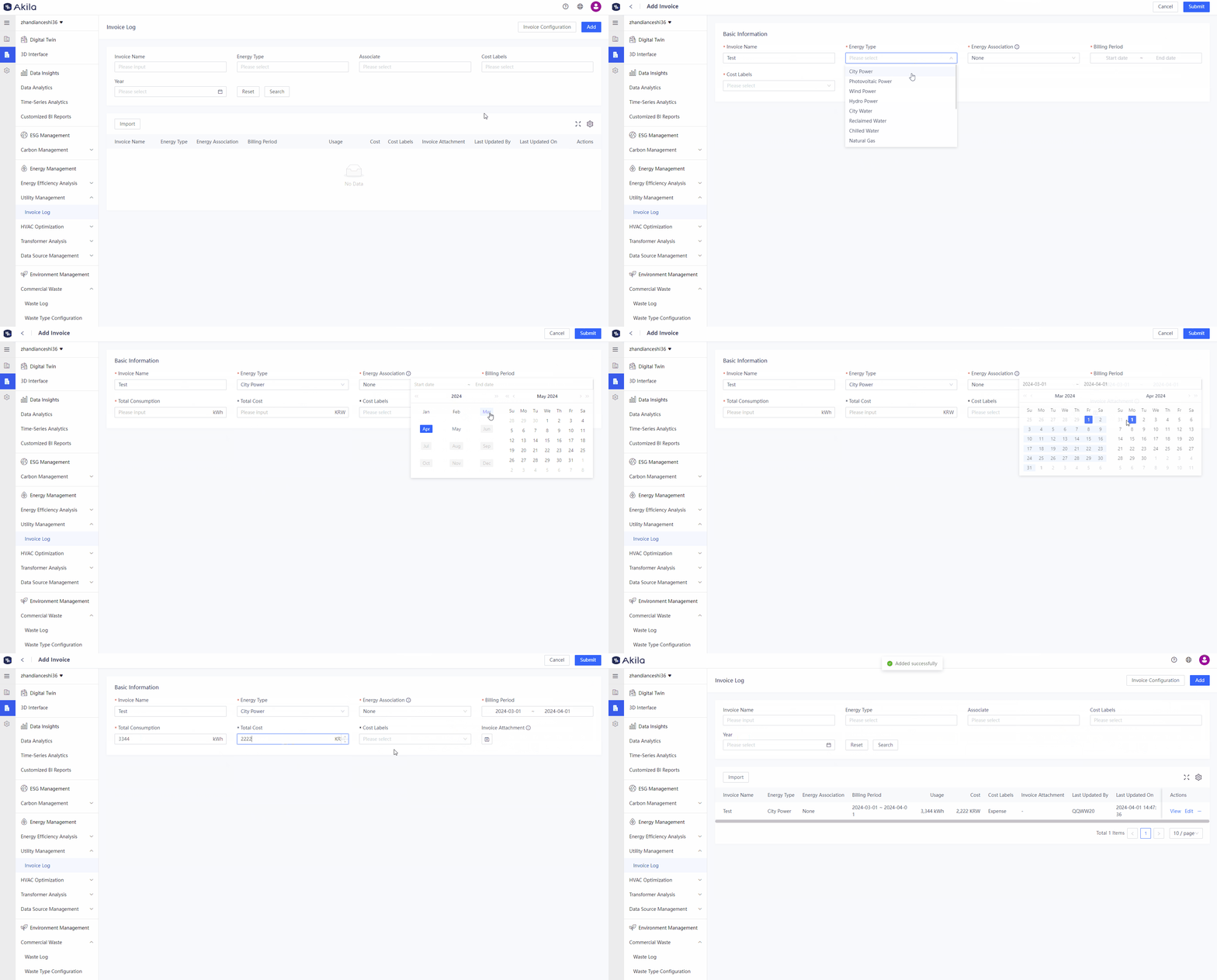
2.Add Invoice
2.1 Click "Add" 2.2 Enter a name for the invoice. 2.3 Select an "Energy Type". Note: Here what you need to select should be the energy type you edited in the first step. 2.4 Select "Energy Association".**Note:** When associating with "Supply" or "Usage", the invoice's usage data will be calculated when counting the supply or usage of the energy type and will be averaged on a daily basis. 2.5 Select a billing period. Note: Also the statistical period of the invoice. 2.6 Select "Cost Labels".**Note:** Since an enterprise can both consume and sell power, the label might be "Expense" or "Income". If consuming power, select "Expense". If selling power, select "Income". 2.7 Click "Submit".