Equipment Ledger
Equipment refers to tools, machinery, and other tangible assets designed and used for specific purposes, tasks, or activities. Our equipment includes both IOT-enabled equipment and physical equipment.
You can use it to:
- Manage all equipment-related information.
- Serve as a foundational element in Akila, supporting meter configuration, work orders, inspections, location management, monitoring points, and other platform features.
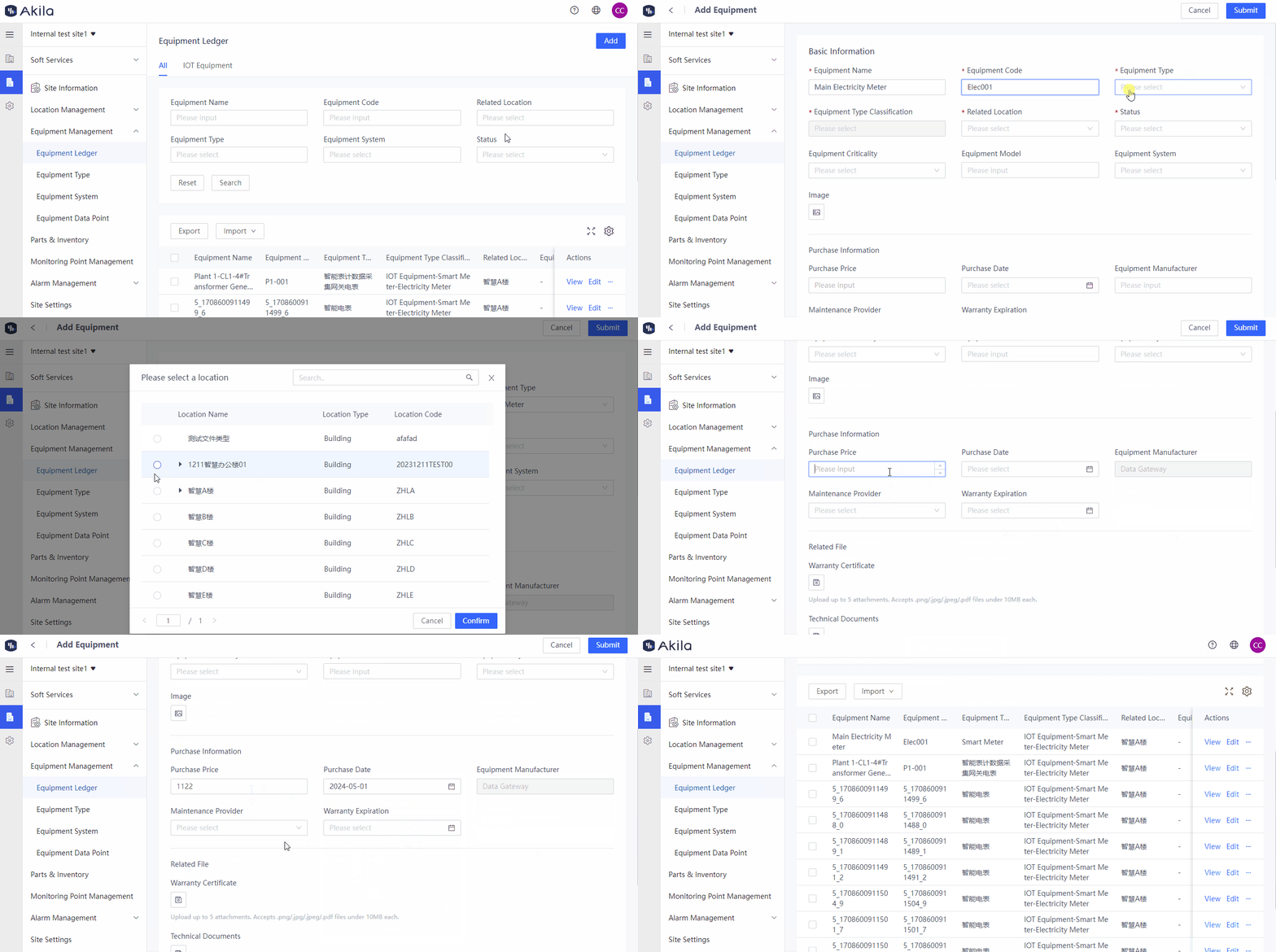
Add Equipment
1.Add Equipment Type
1.1 Add the equipment type on the "Equipment Type" page.2.Add Location
2.1 Add the equipment location on the "Location Information" page.3.Add Equipment
3.1 Click "Add"3.2 Input "Equipment Name" and "Equipment Code"
3.2 Select the "Equipment Type" created in step 1.
3.3 Select the "Related Location" created in step 2.
3.4 Select the equipment "Status".
3.5 Select the "Equipment Criticality" (optional).
3.6 Enter the "Equipment Model" (optional).
3.7 Select the "Equipment System" (optional).**Note:** The options are the equipment systems you added on the "Equipment System" page.
3.8 Enter other optional information including "Image, Purchase Information, and Related Files."**Note:** When the equipment manufacturer is "Data Gateway," you can input the manufacturer's name. The purchase information includes purchase price, date, equipment manufacturer, maintenance provider, warranty expiration date, and expiry date.
3.9 Add "Parameters".**Note:** If the equipment is a transformer, you need to add its parameters here for display on the "Load Analytics" page. If multiple equipment parameters need to be uploaded or modified, you can use a template to do this efficiently. Please follow the template instructions.
3.10 Click "Submit".
Batch Add/Update Equipment
- Click on "Import" in the middle of the page.
- Click "Add" or "Update".Note: "Add" refers to batch addition of new equipment, allowing you to upload multiple parameters at once. "Update" means updating parameters of existing equipment in the list, including batch updates to equipment parameters, types, manufacturers, maintenance providers, and purchase dates.
- Download the template and fill it out according to the instructions provided.
- Click "Please select" and upload the template that you have filled out in the previous step.
- Click "Confirm".
Export Equipment
- Select the equipment you want to export.
- Click on "Export" in the middle of the page.
- In the pop-up window, click "Confirm".